Scrape and crawl pages as a step in any Zapier workflow, with no code. Install the Spider integration to get started.
The example
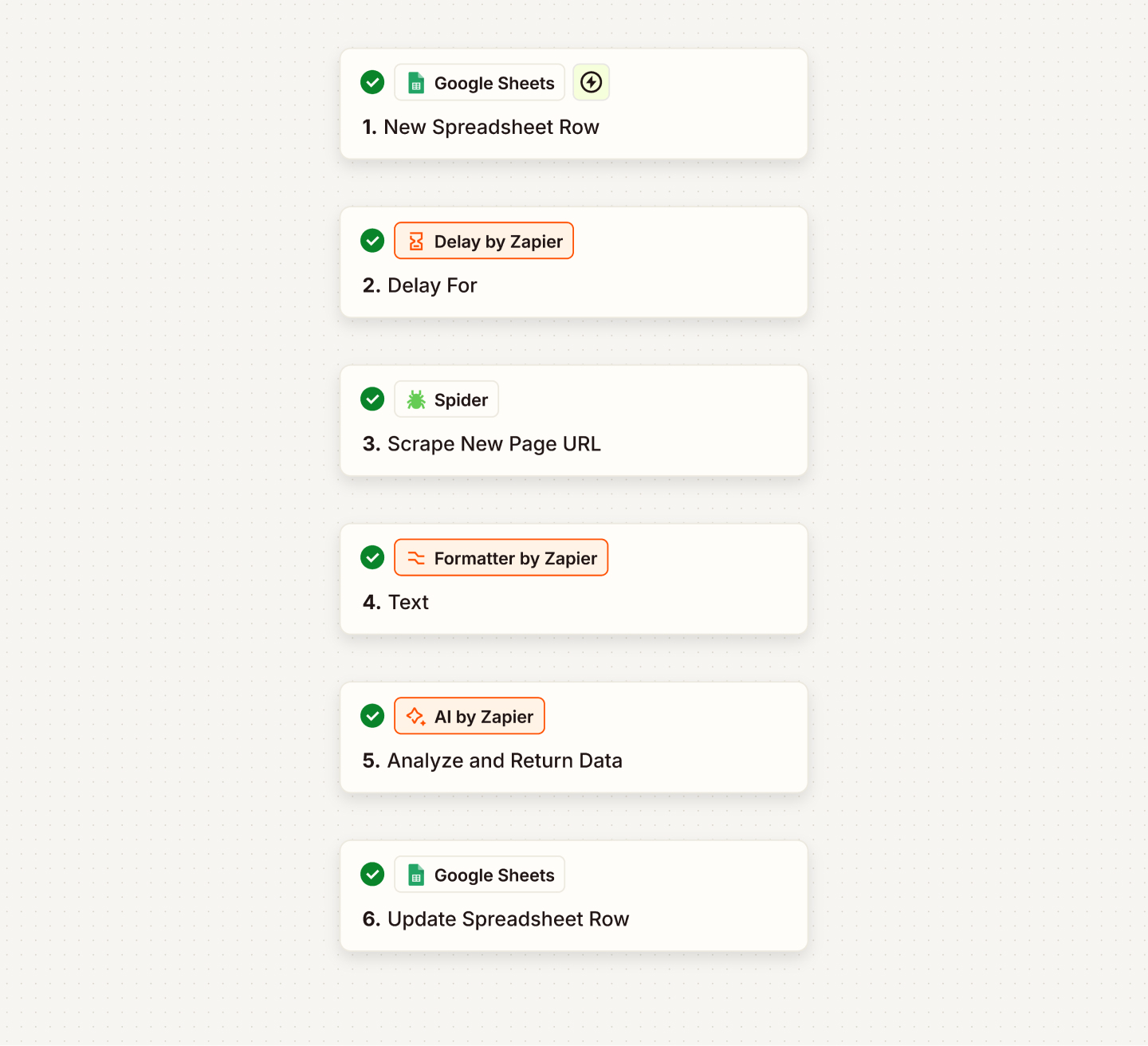
Each new row in a Google Sheet holds a company URL. The Zap scrapes the page, summarizes it and writes the summary back to the row.
the finished zap
Before you start
Accept the Spider Zapier invite and connect your Google Sheets account.
Build the Zap
Seven steps, with a screenshot of each one.
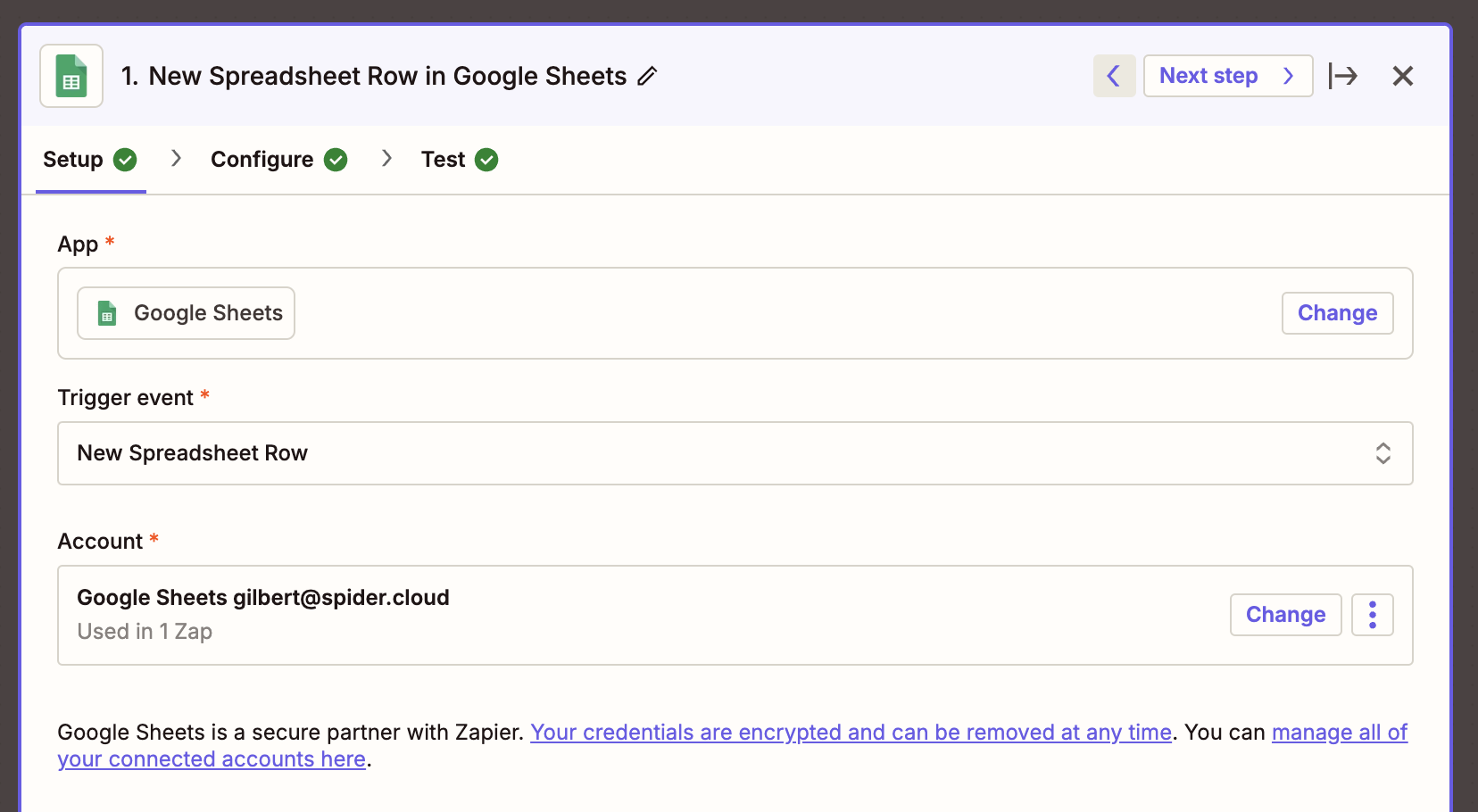
01Add a Google Sheets "New Spreadsheet Row" trigger as the first step.
step 1 · trigger
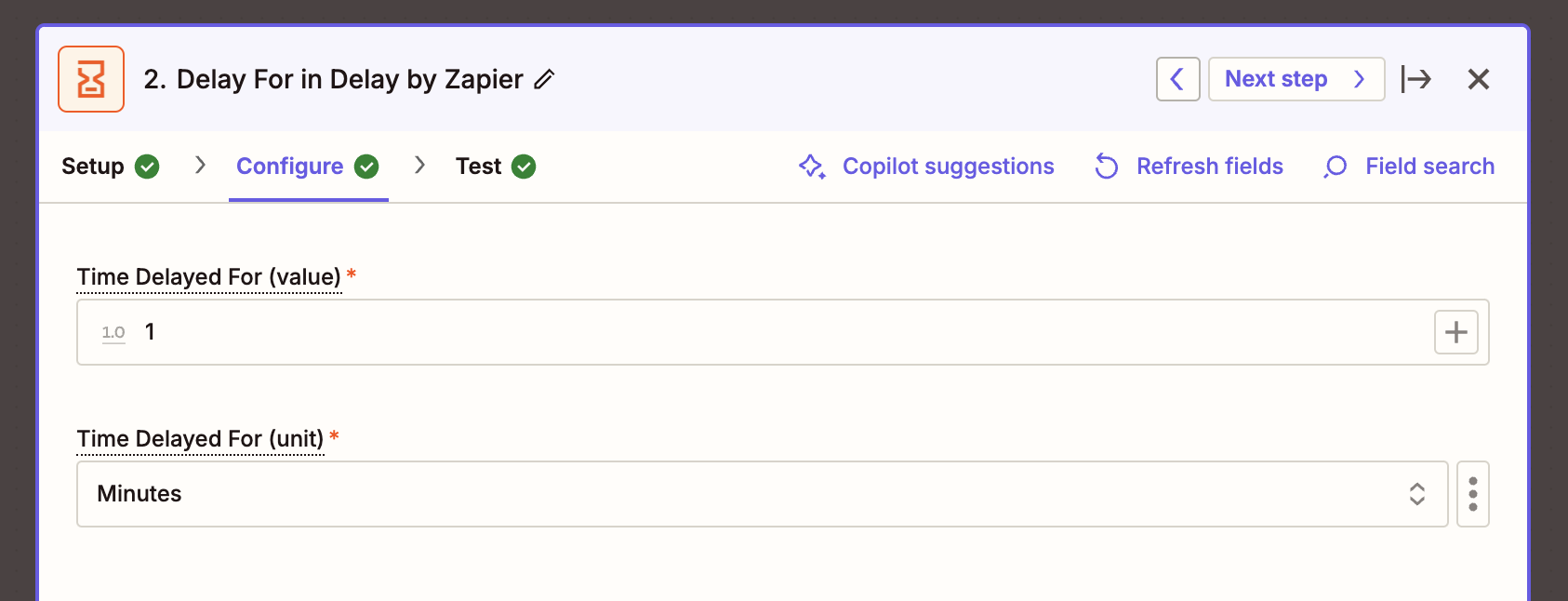
02Optional: add a 1 minute Delay by Zapier step so the row has finished saving before the scrape runs.
step 2 · delay
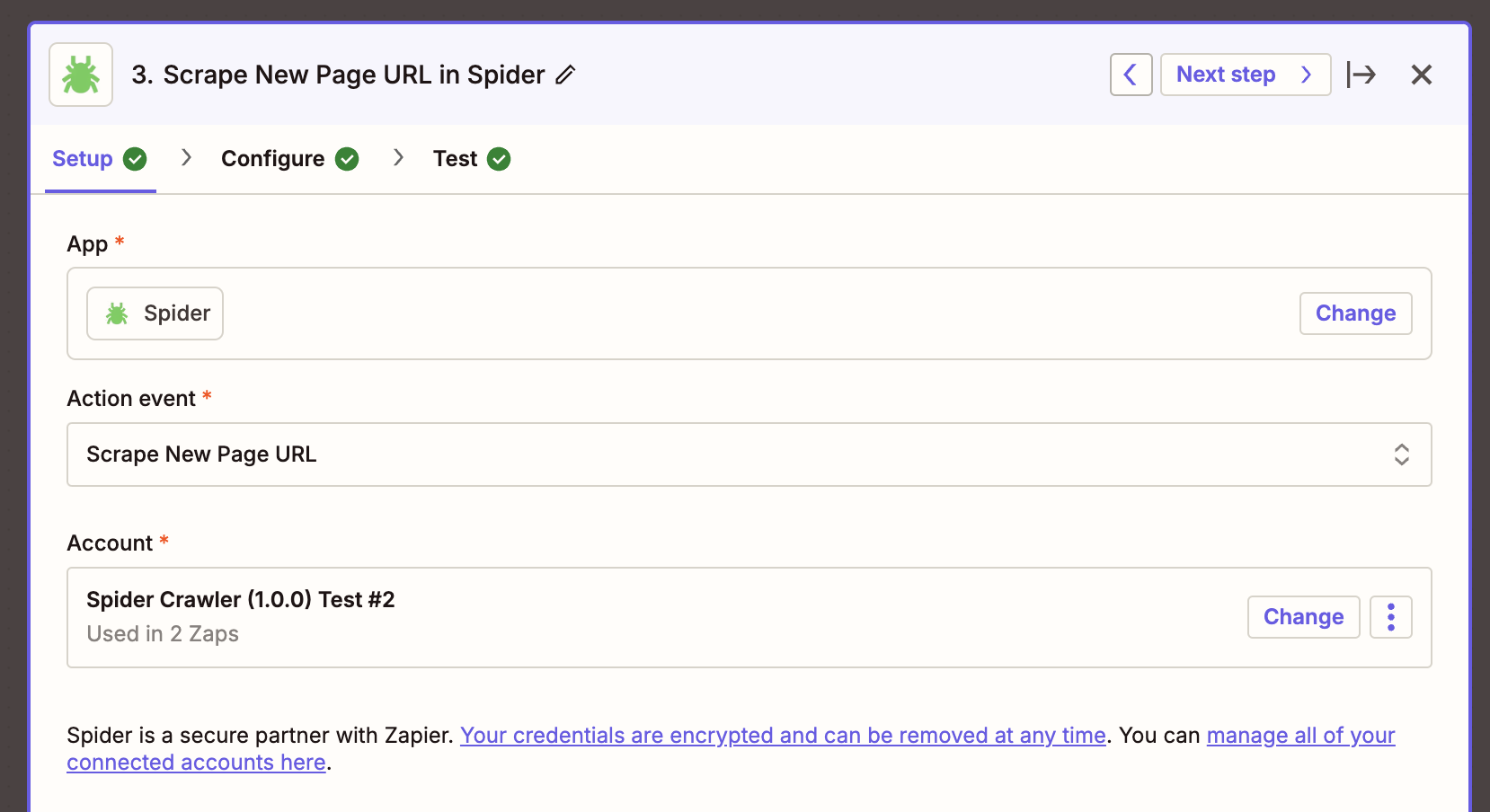
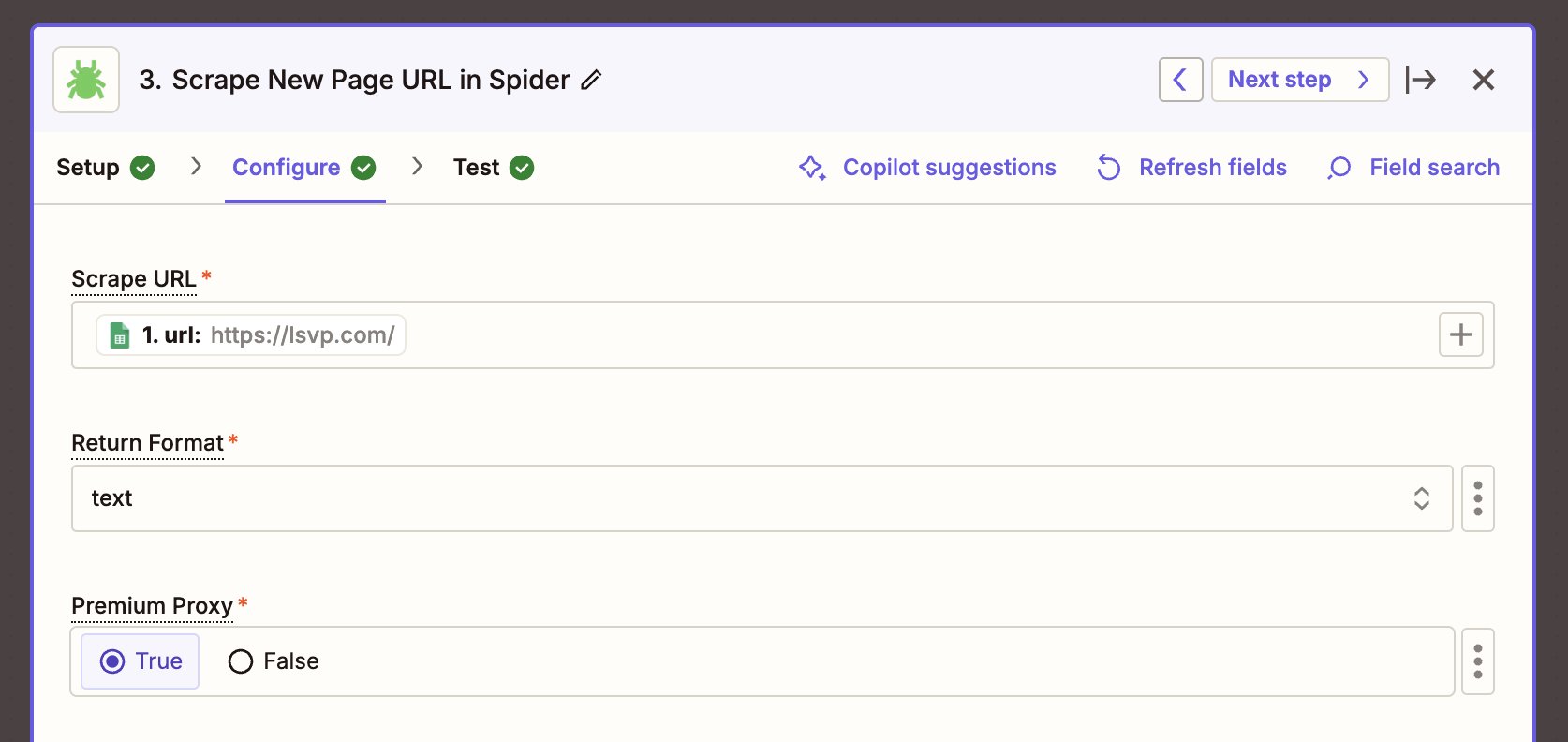
03Add the Spider "Scrape New Page URL" action. This example uses the single scrape event. For the Scrape URL field, pick the URL column from the sheet. Set return format to "text".
step 3 · scrape actionstep 3 · scrape fields
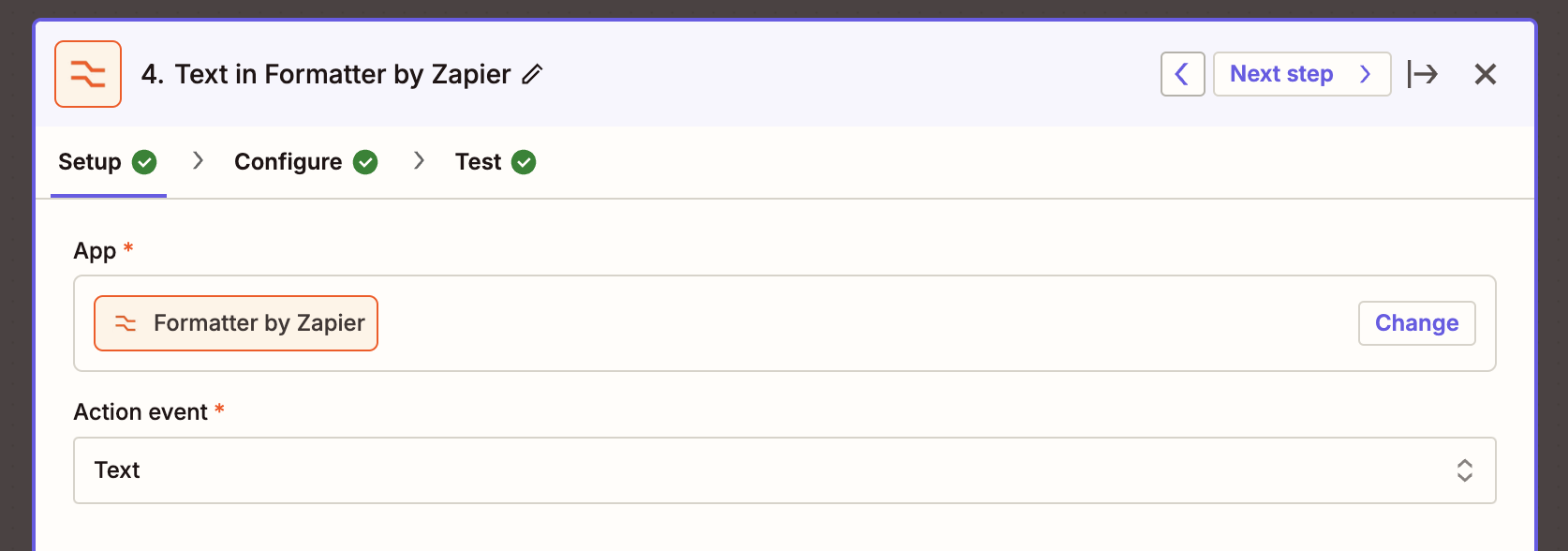
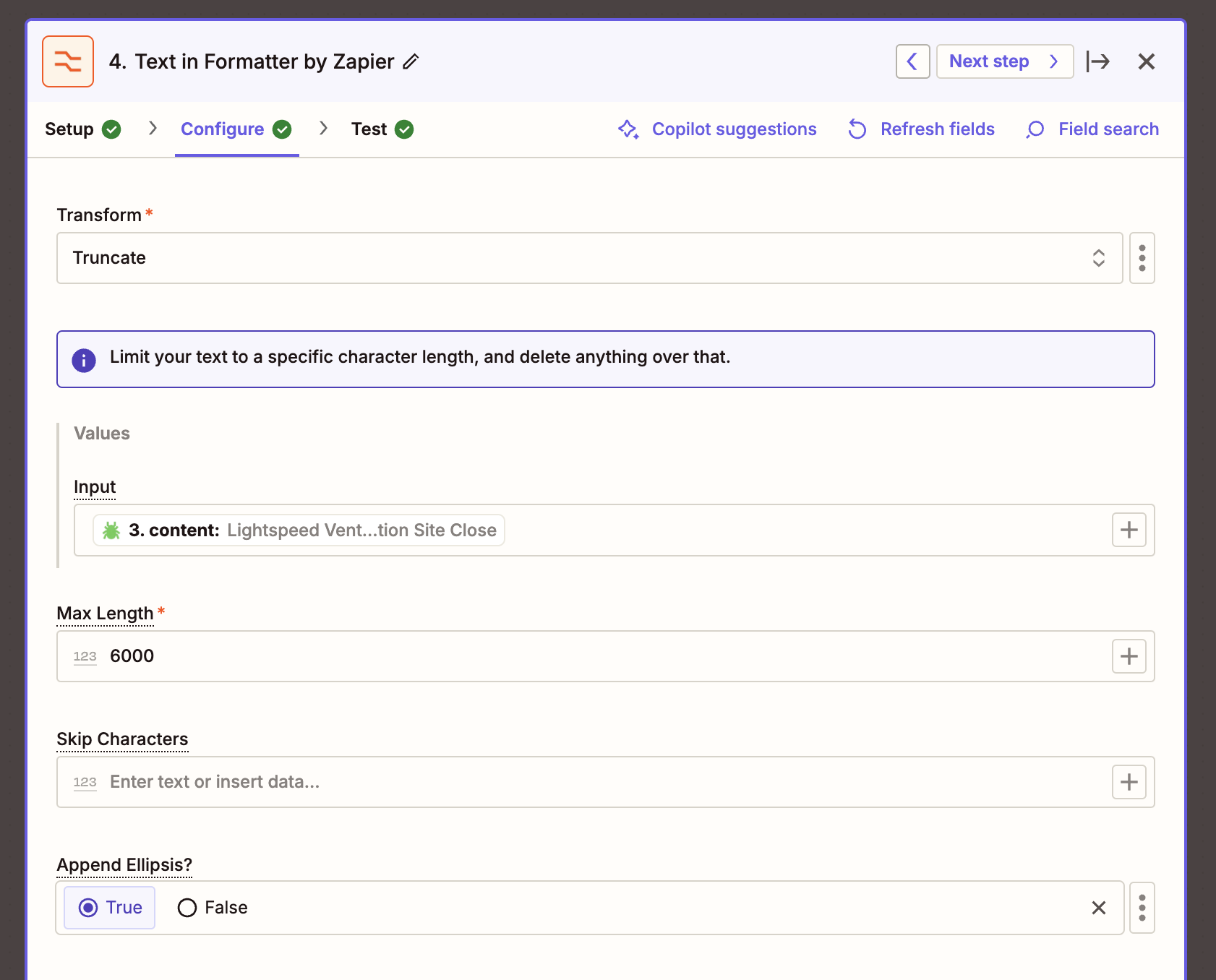
04Add Zapier's "Text in Formatter" with the "text" action event to trim the scraped output. Set "input" to the "content" field from the Spider step. Set the max length to 6000 for this example and "append the ellipsis" to "True".
step 4 · formatterstep 4 · formatter fields
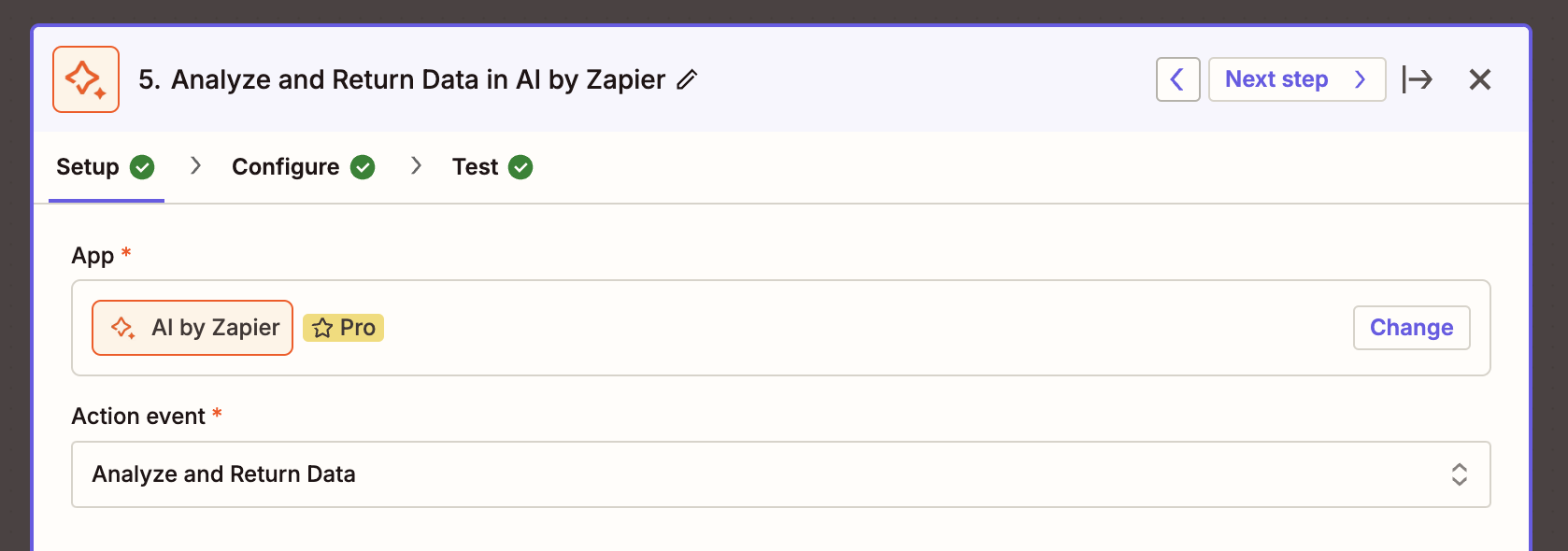
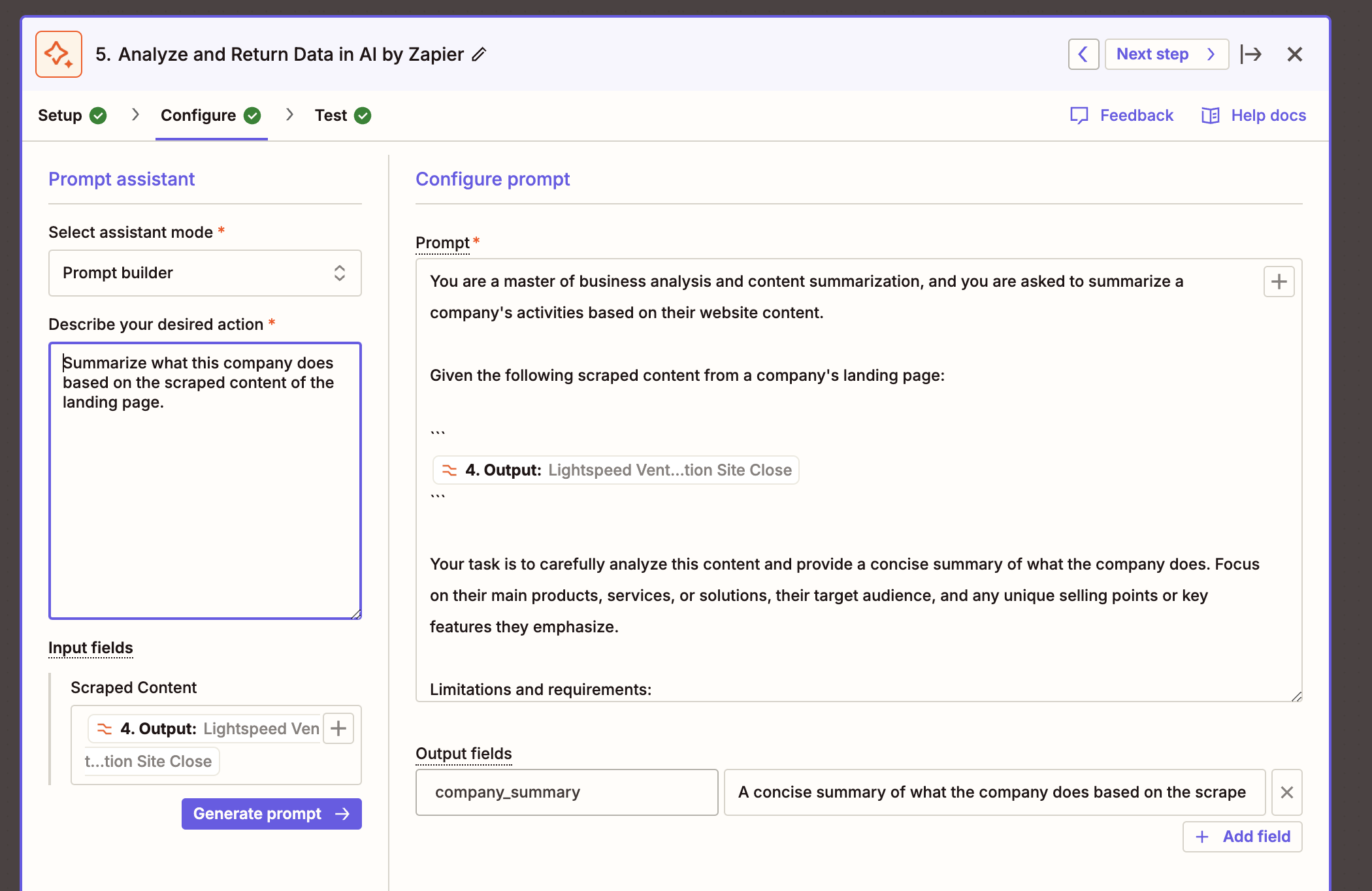
05Pass the trimmed text to Zapier's built-in AI step. It needs a Pro plan. Describe the summary you want and let the prompt assistant write the prompt; edit it if the output is off. In "input fields", set the scraped content to the "Output" of the previous step, and add an output field named company_summary.
step 5 · AI summarystep 5 · AI summary fields
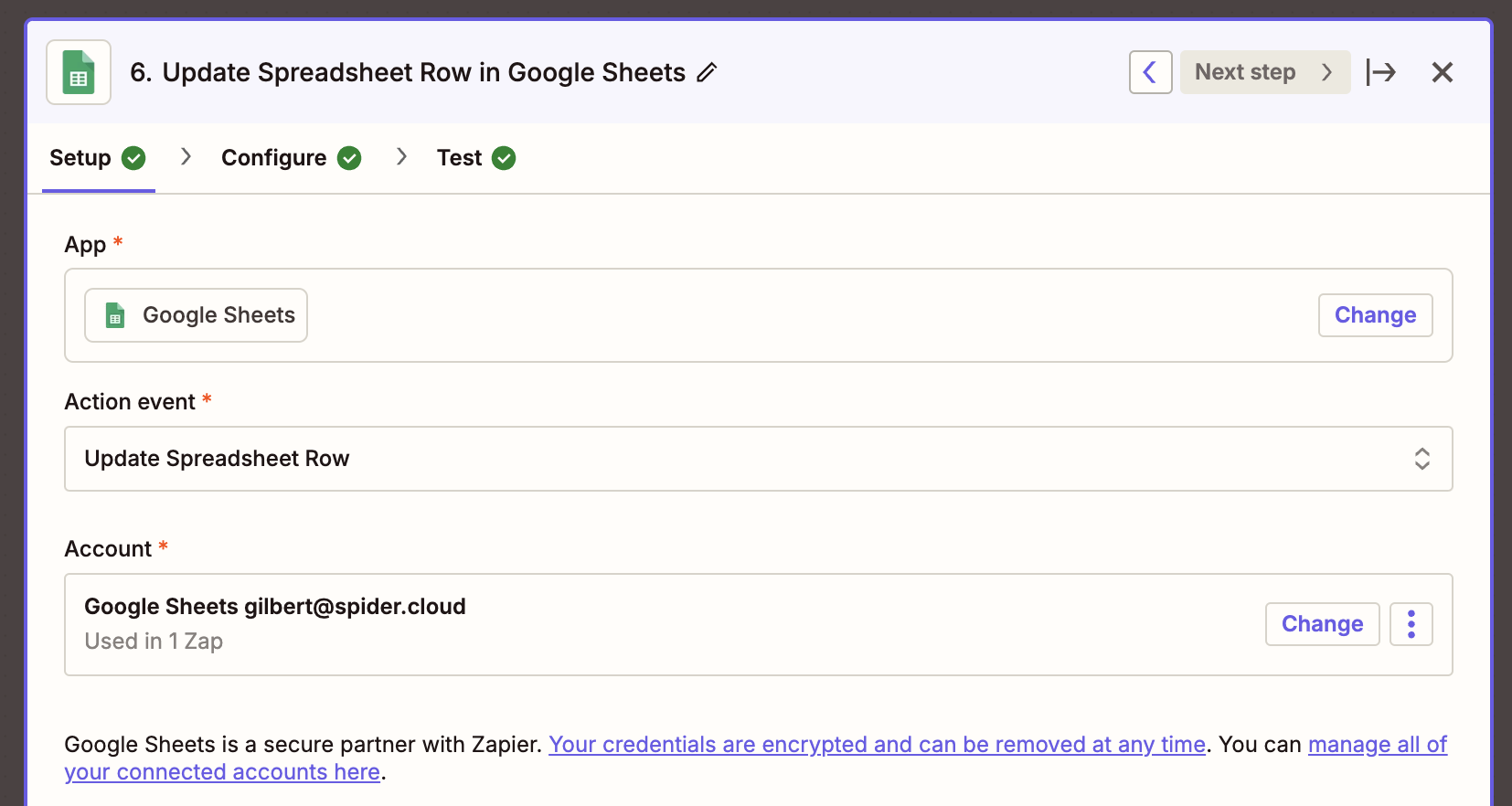
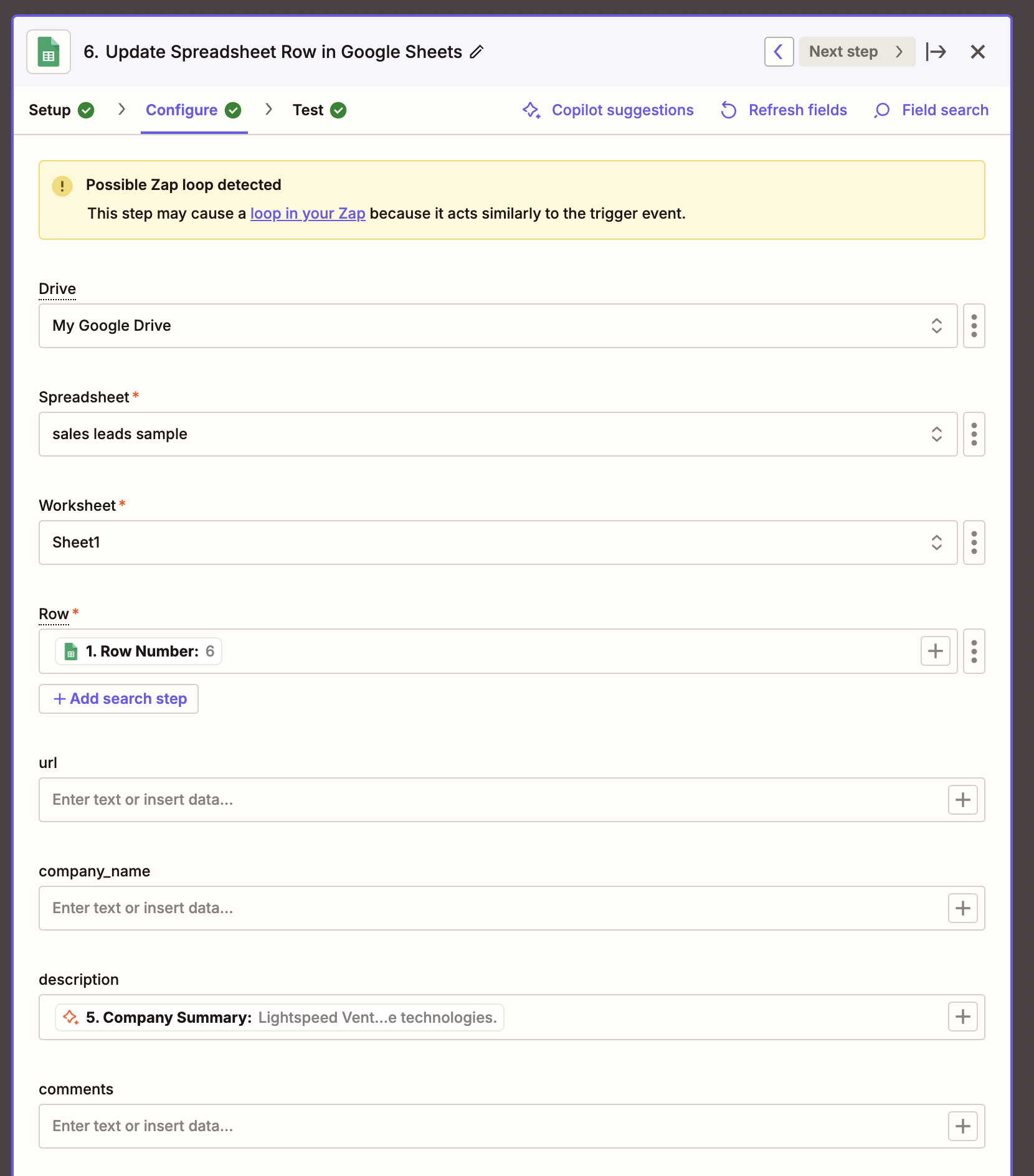
06Update the spreadsheet row with the summary. Point the step at the same spreadsheet and worksheet as step 1, set the row number from the trigger, and set "description" to the company_summary field. Leave url, company_name and comments empty; those columns do not change. Zapier warns about a loop because the Zap writes to the sheet that triggered it. That is fine here: the write updates an existing row.
step 6 · update rowstep 6 · update row fields
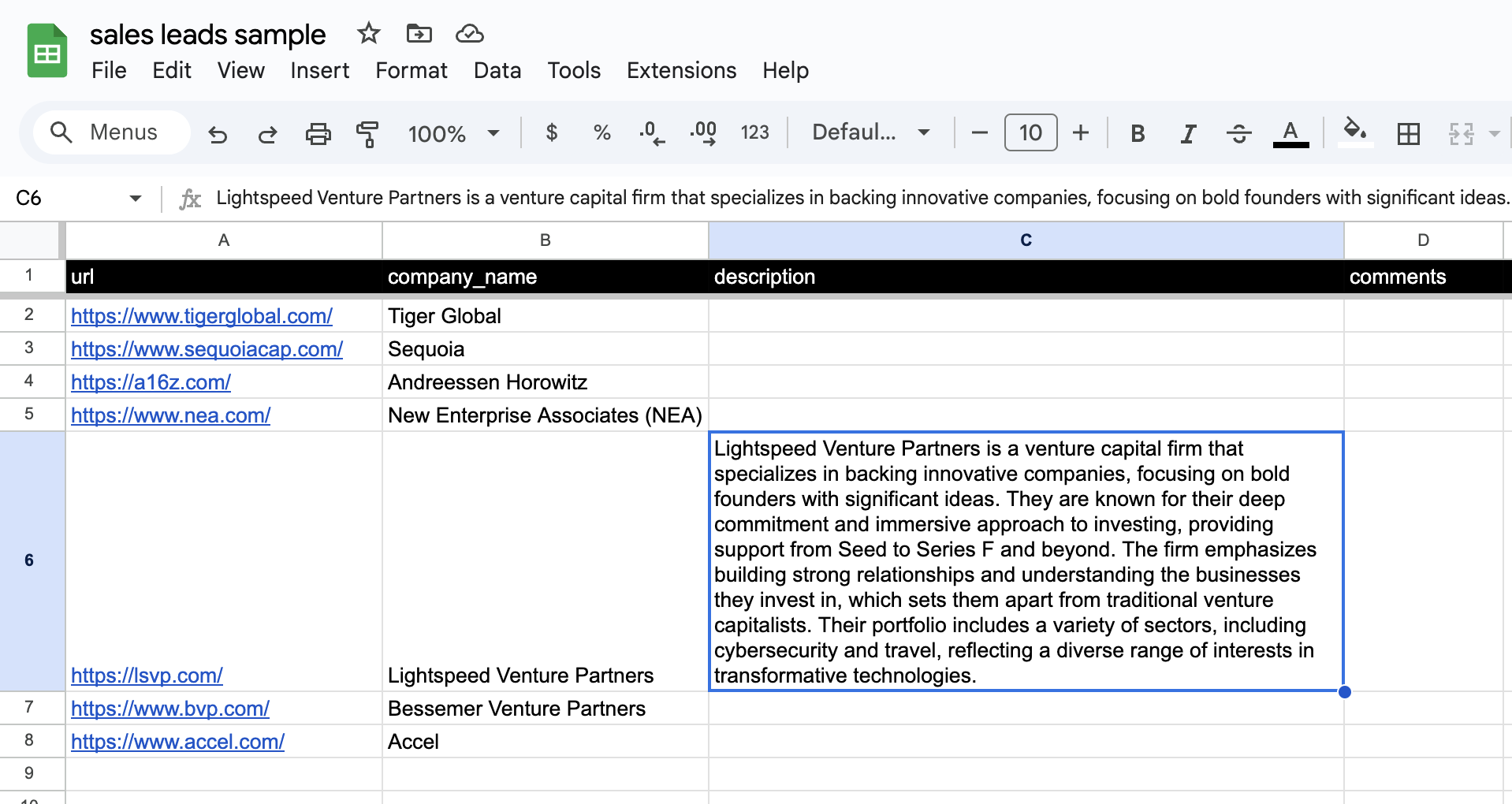
07Run a test. The description column of the new row fills in, as in row 6 below.